How to integrate GitHub account?
This guide provides two authentication methods to integrate your GitHub account:
- Personal Access Token (PAT) Flow
- GitHub App Credentials Flow
Personal Access Token (PAT) Flow
Overview
To authenticate, you need:
- Personal Access Token (PAT)
Step 1: Generate Personal Access Token
- Navigate to GitHub.com and sign in to your account.
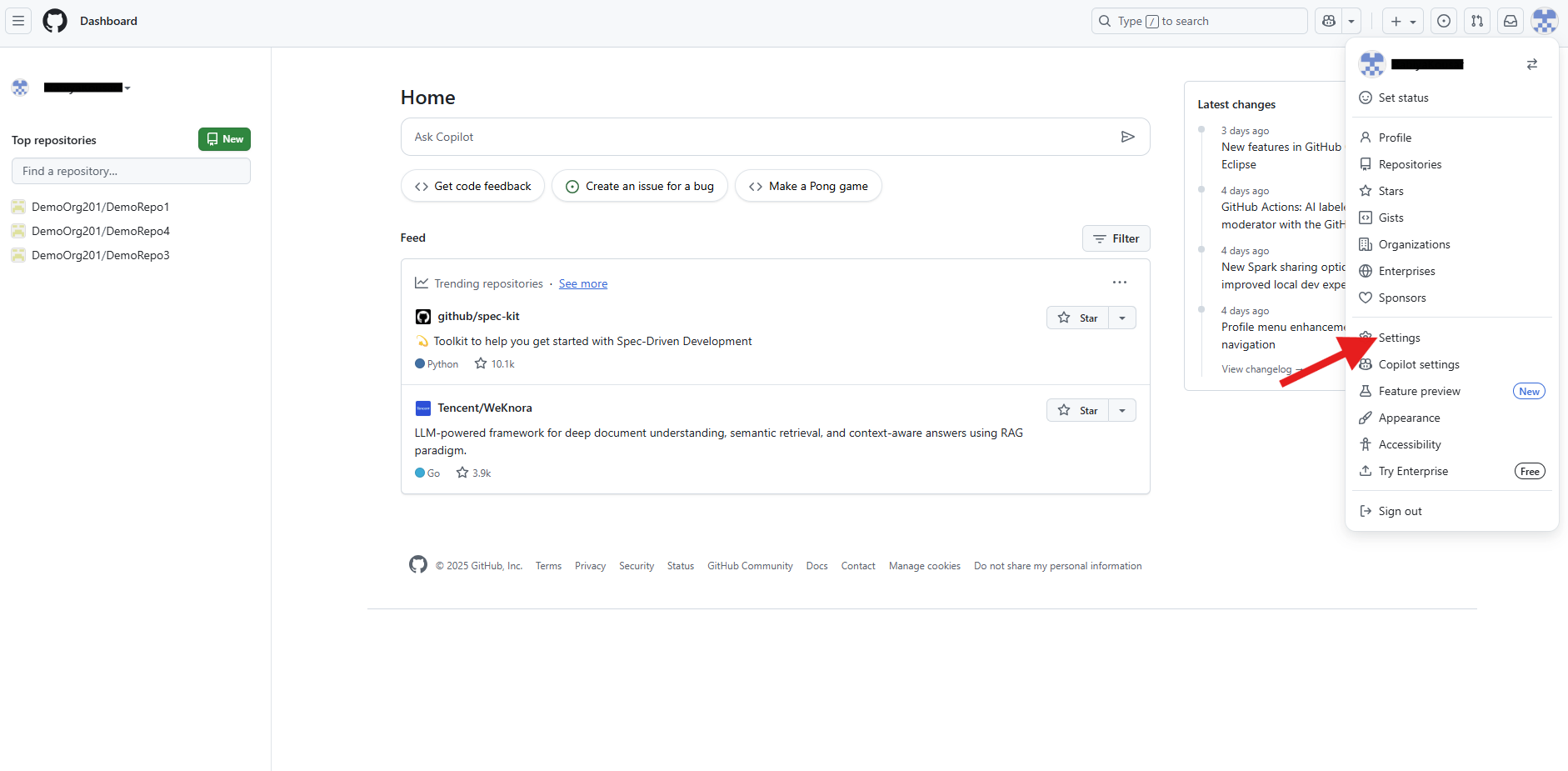
- Click your profile photo in the upper-right corner, then select Settings from the dropdown menu.
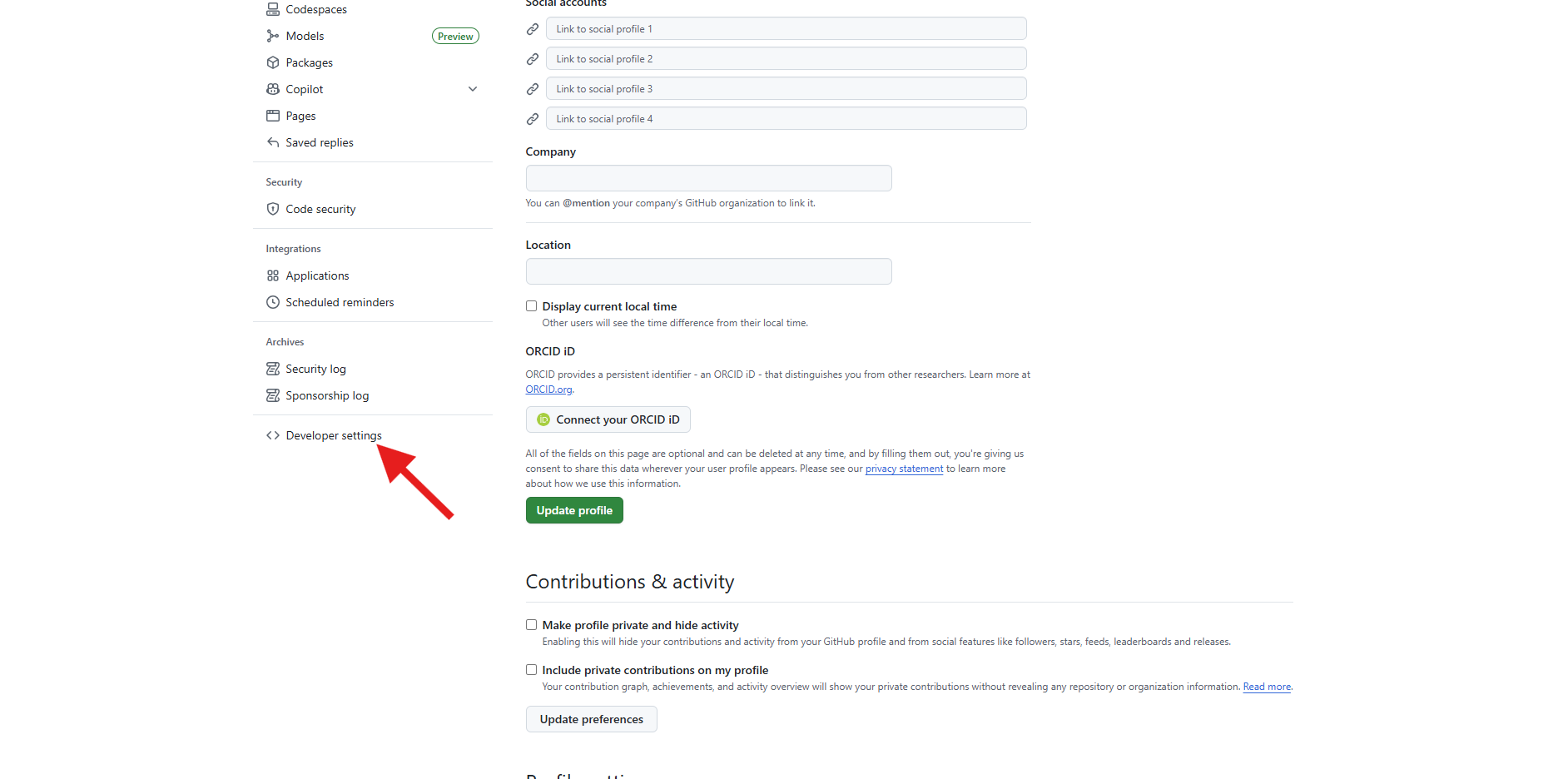
- In the left sidebar, scroll down and click Developer settings.
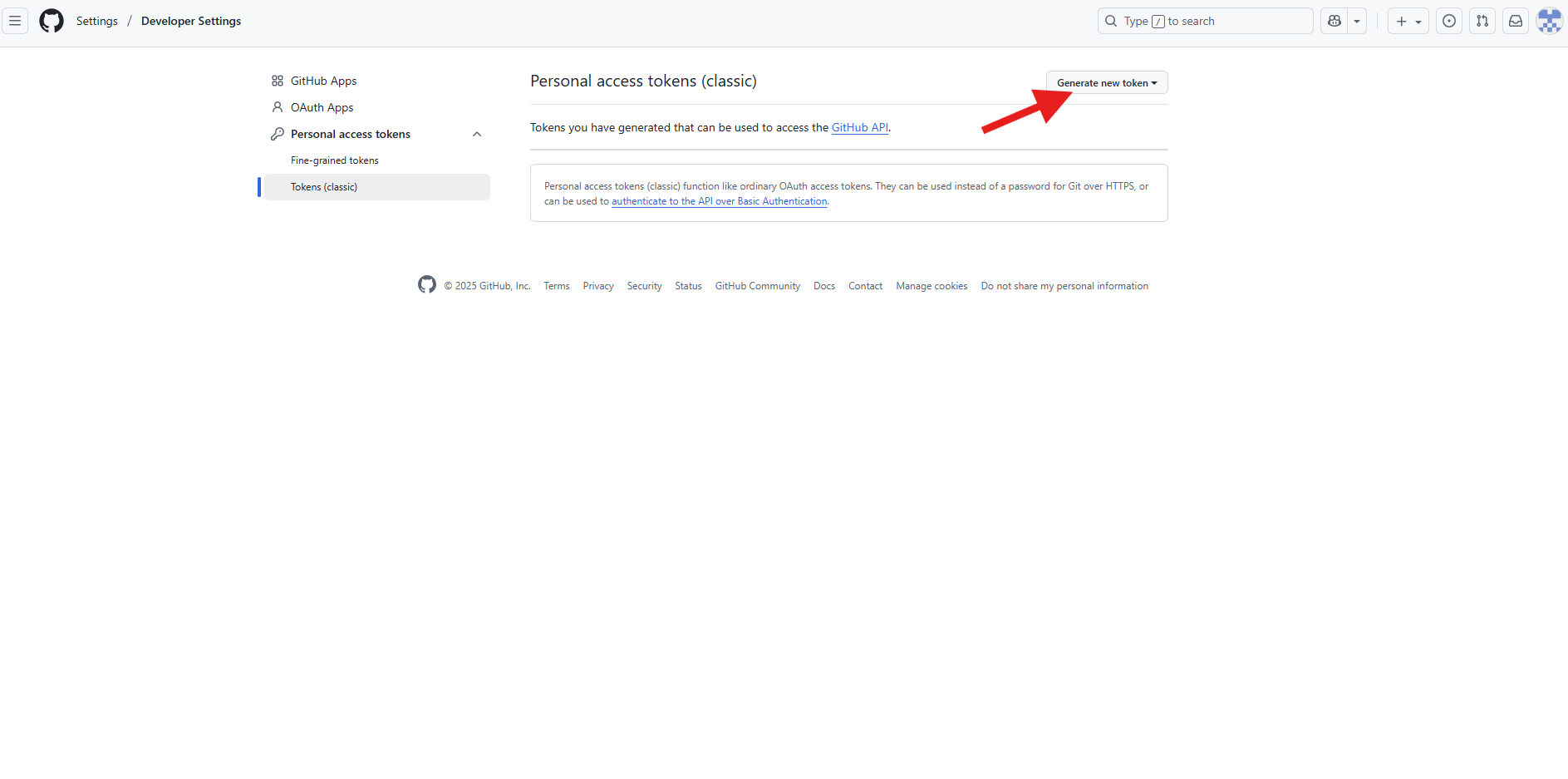
- Under Personal access tokens, click Tokens (classic).
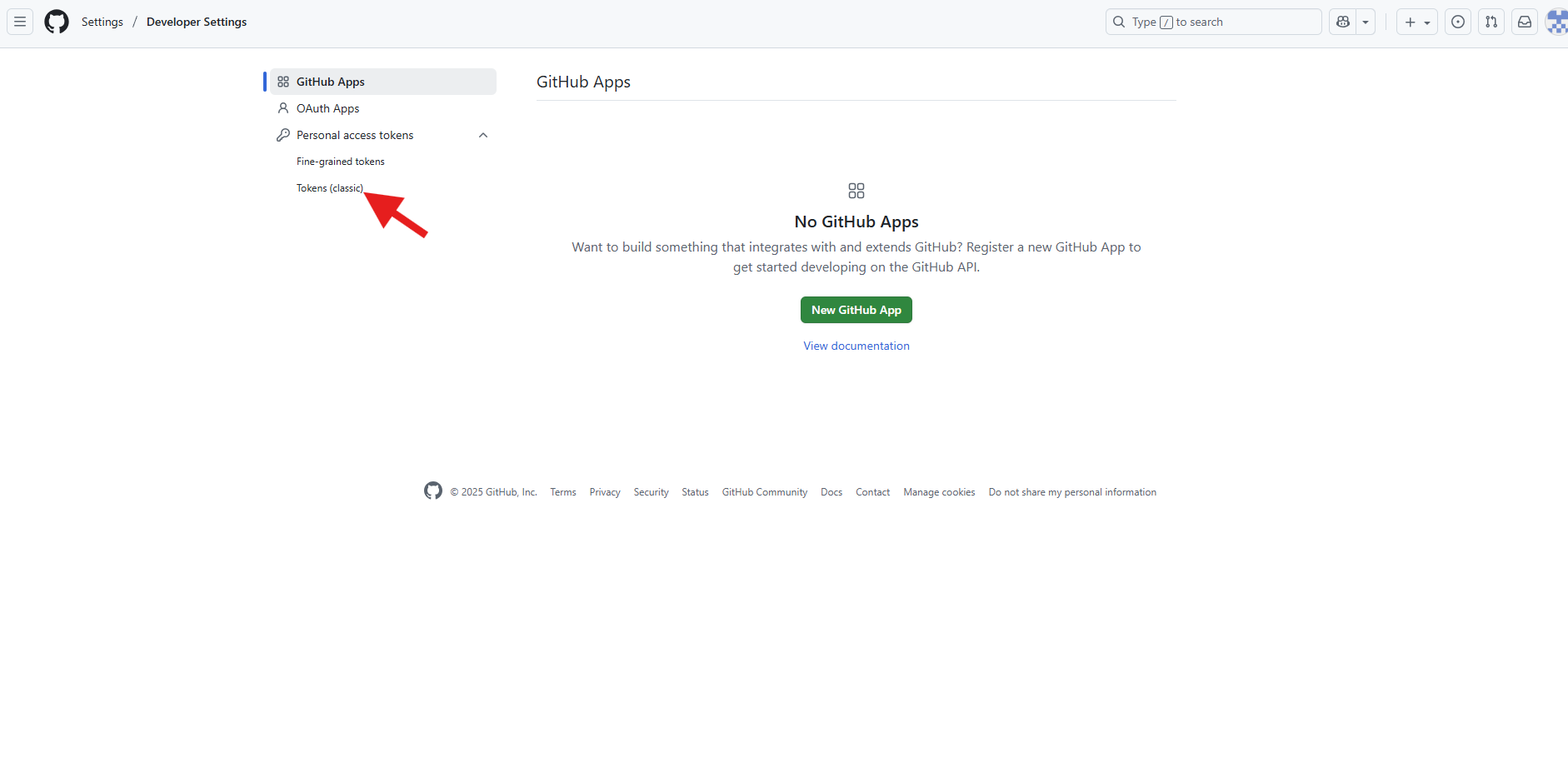
- Select Tokens(classic), then select Generate new token.
-
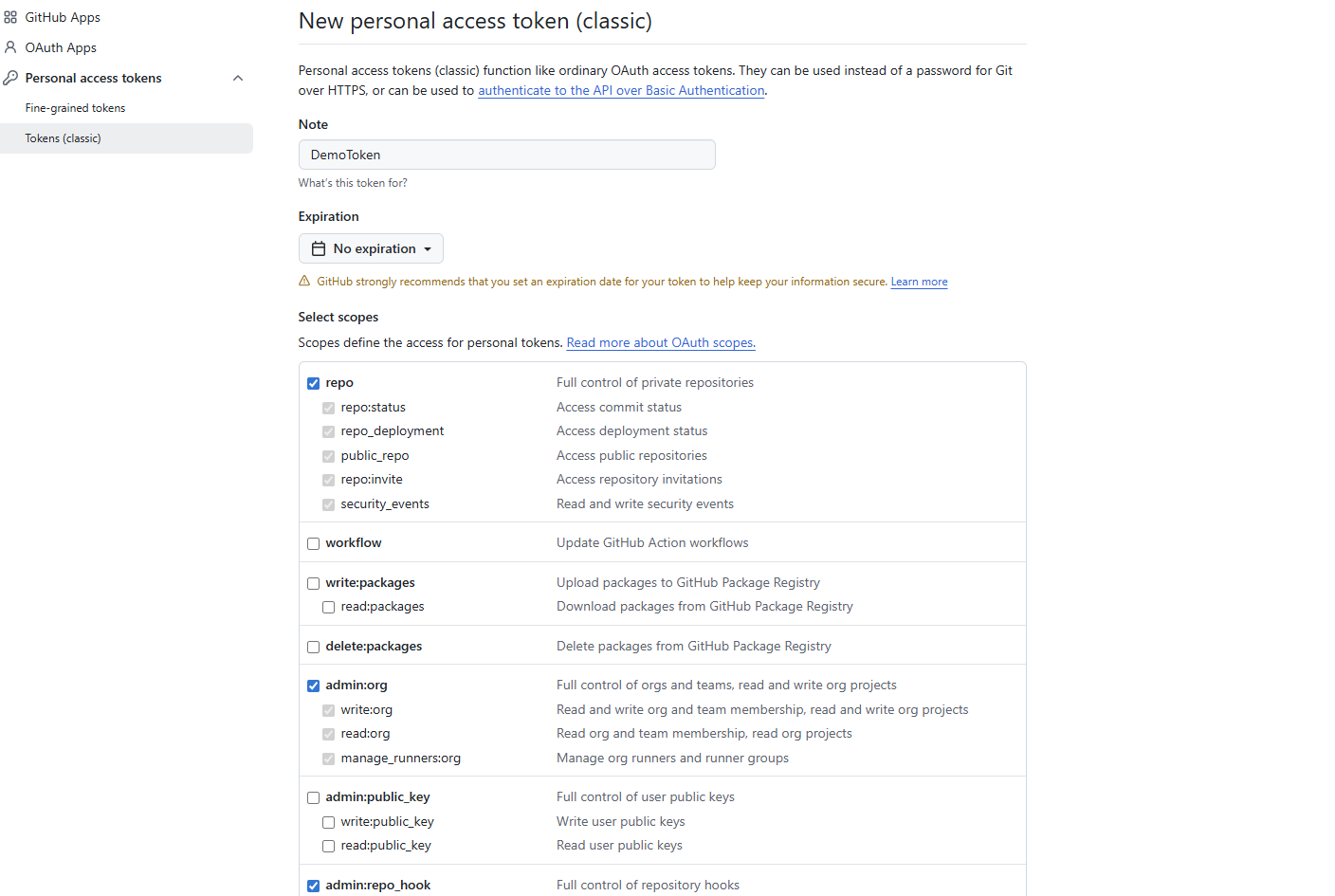
Configure Token Settings:
- Note: Enter a descriptive name (e.g., “Project Integration API”).
- Expiration: Choose a valid expiration period.
Recommended: 90 days or less (avoid “No expiration”).
-
Select Required Scopes:
repo– Full repository accessadmin:repo_hook– Repository webhook managementadmin:org_hook– Organization webhook managementread:user– Read user profile datauser:email– Access user email addresses
- Click Generate token.
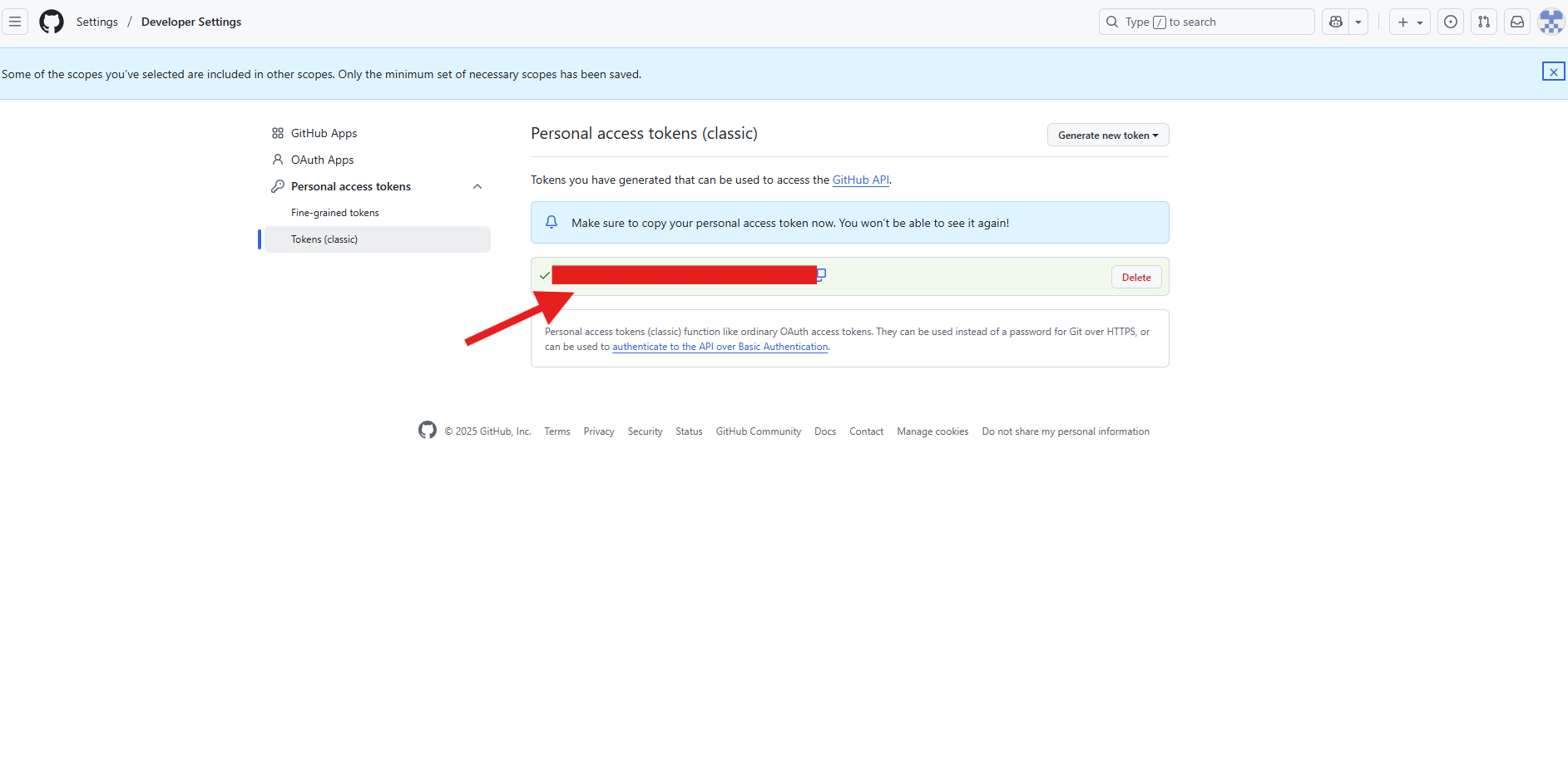
Copy the token immediately — it won’t be shown again. Store it securely for use in Unizo integration setup.
GitHub App Credentials Flow
Overview
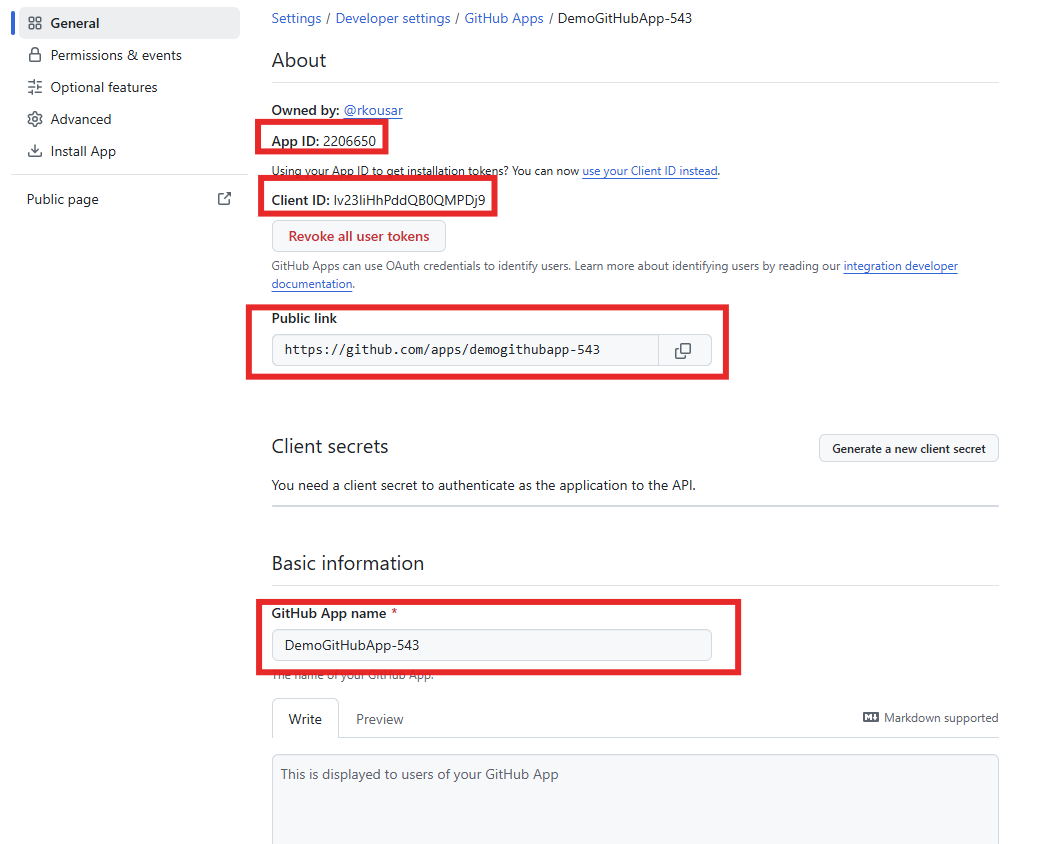
To authenticate your GitHub App , collect the following details after app registration:
- App Name
- App URL
- App ID
- Client ID
- PEM File (Private Key)
- Redirect URL
Step 1: Create a GitHub App
- Go to GitHub.com and sign in to your account.
- In the upper-right corner, click your profile photo, then select Settings.
- In the left sidebar, click Developer settings.
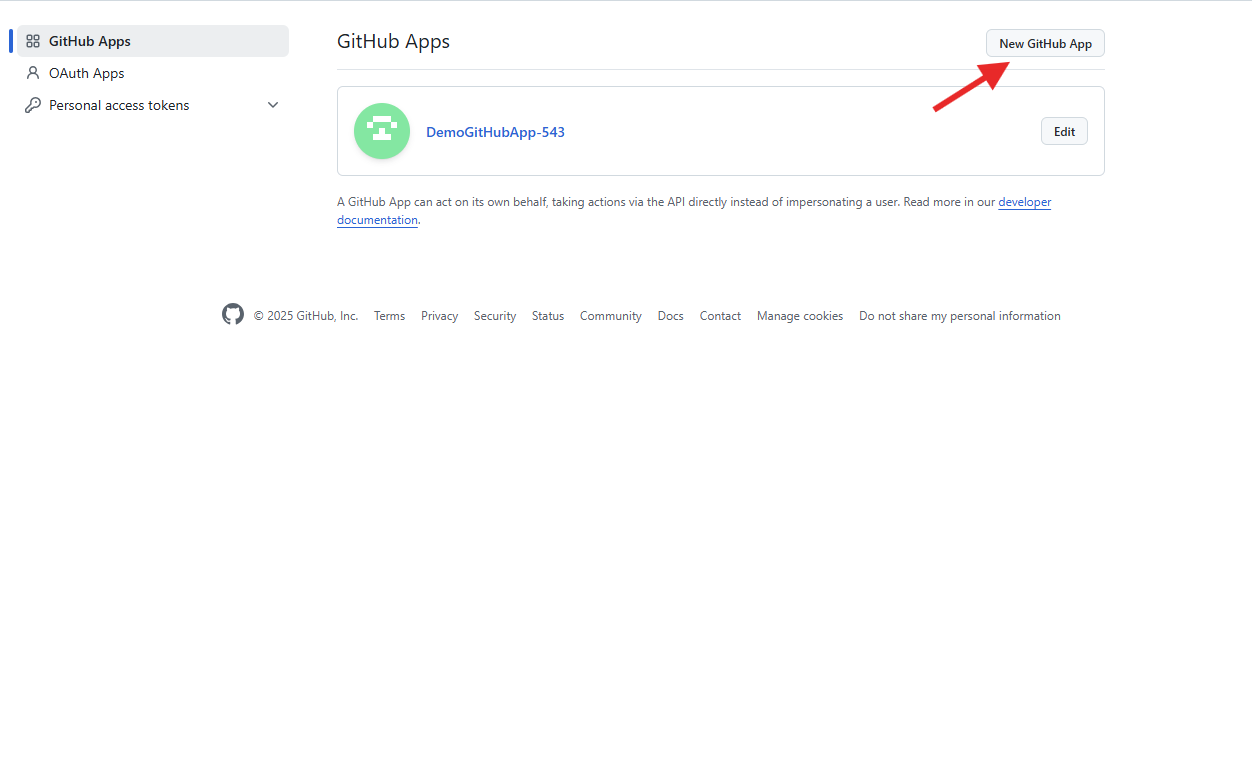
- Click New GitHub App.
-
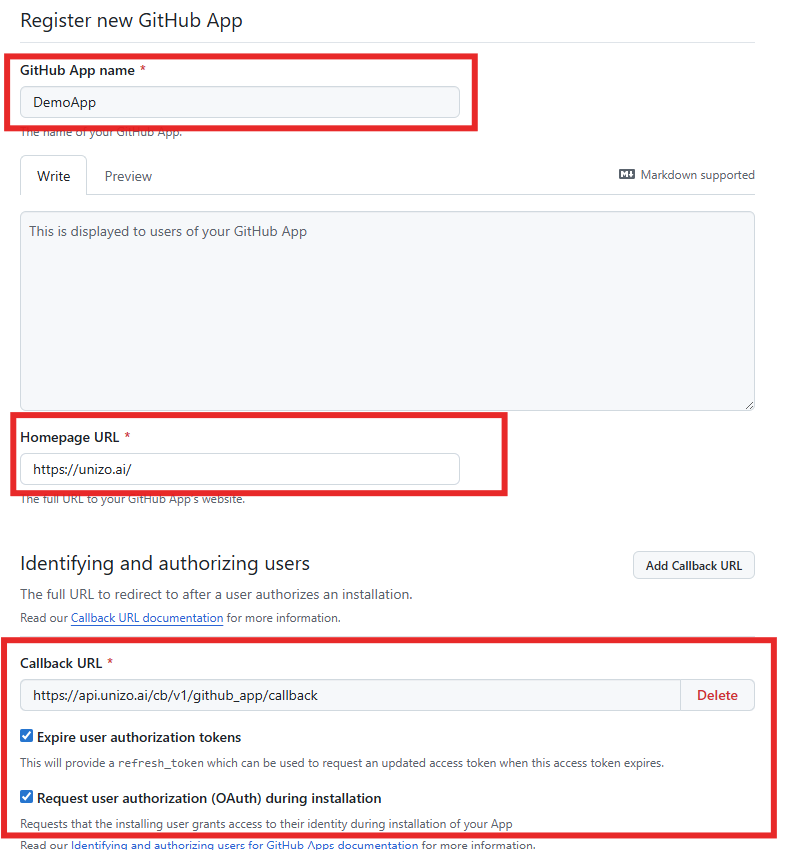
Under Register new GitHub App, provide the following details:
- GitHub App name: Display name of your app as shown to users.
- Homepage URL: The main website or landing page associated with your app.
- Callback URL Or Redirect URL: Use
(Required when testing from Unizo.)
https://api.unizo.ai/cb/v1/github_app/callback - Check Request user authorization (OAuth) during installation.
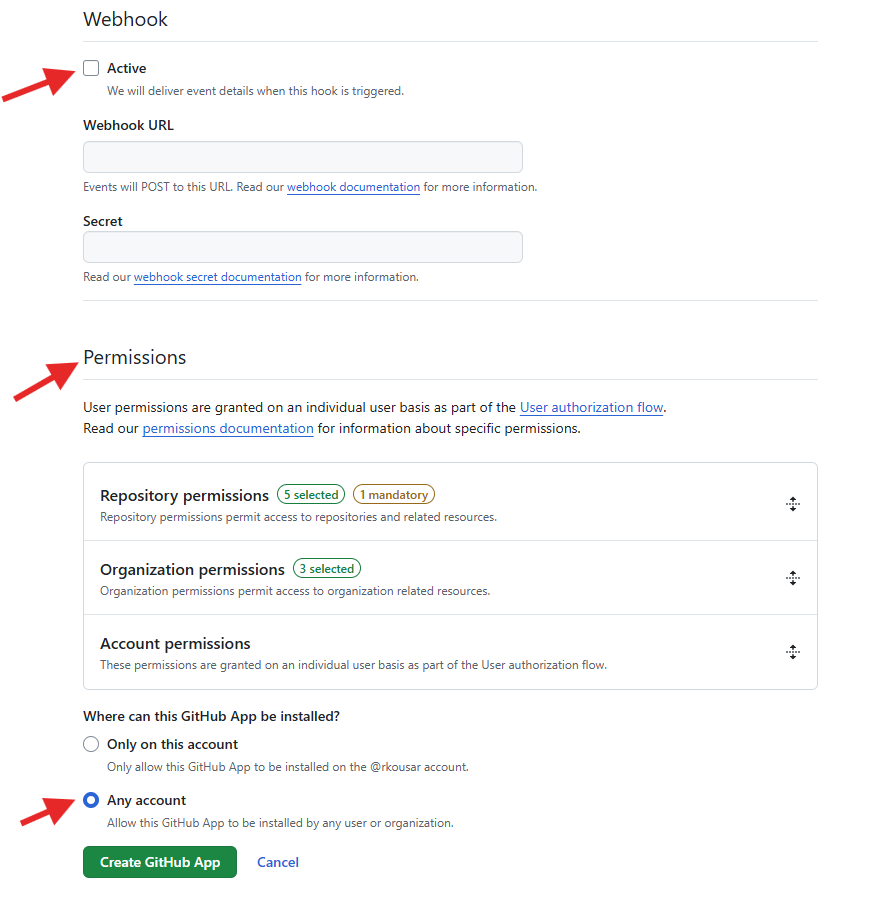
- Uncheck Webhook Active.
-
Configure Permissions as follows:
- metadata → read
- pull_requests → write
- secrets → write
- workflows → write
- members → read
- checks → write
- contents → read
- events → read
- webhooks → write
-
Select Any account, then click Create GitHub App.
Step 2: Retrieve GitHub App Credentials
After creating the app, click on the GitHub App you registered and collect the following details:
- App URL → In the About section under Public link.
- App ID → Displayed in the About section.
- Client ID → Displayed in the About section.
- App Name → Found in Basic Information.
- PEM File → Go to Private keys → click Generate a private key to download the
.pemfile.
Store it securely — it is your private key and must remain confidential.